Monday, July 16, 2012

wifi လြင္႕နည္းစာအုပ္ေလးပါ

www.onekokoaung.co.cc  မွစာအုပ္ေလးပါ။လုိခ်င္သူမ်ား ဒီက ေနေဒါင္းႏုိင္ပါတယ္ခ်င္ဗ်ာ။

Saturday, May 19, 2012

ကြန္ပ်ဴတာ ဆုိေသာ အရာၾကီးကုိ ေလ႕ လာမယ္

အပုိင္း(၁)
  
Computer(ကြန္ပ်ဴတာ)  ဆုိသည္မွာအီလက္ထေရာနစ္ပစၥညး္တစ္ခုပင္ၿဖစ္ပါသည္။အခ်က္ အလက္မ်ားကုိအေၿဖ (သုိ ႔) သတင္း
အၿဖစ္သုိ႕တြက္ခ်က္ေပးေသာစက္တစ္ခုပင္ၿဖစ္ပါသည္။ညႊန္ၾကားခ်က္မ်ား
ကုိ ၿမန္မွန္တိက်စြာ  တြက္ခ်က္ေပးႏုိင္ေသာ  စက္ဟု လုိလည္း ေခၚဆုိႏုိင္ပါသည္။

Type  of   Computer
ကြန္ပ်ဴတာ အမ်ဳိးအစားမ်ားအနက္   
(၁)Super  Computer
(၂)MainFrame  Computer
(၃)Mini  Computer
(၄)Micro  Computer
     -Desktops
     -Laptops
     -Tablets
     -Notebooks
ဆုိသည္႕ အမ်ဳိးအစား  ေလးမ်ဳးိရွိသည္ကုိေတြ႕  ရပါသည္။

Part  of  Computer

ကြန္ပ်ဴတာ အစိတ္အပုိင္းမ်ားအနက္

(၁)ဟာ႕ ဒ္ ၀ဲ(Hardware) ကုိင္တြယ္ ထိေတြ႕  လုိ႕  ၇တဲ႕   ကြန္ပ်ဴတာရဲ႕  အစိတ္အပုိင္းမ်ားကုိ ေခၚဆုိတာၿဖစ္ပါတယ္။
(၂)ေဆာ႕ ၀ဲ (Software) ကုိင္တြယ္လုိ႕  မရတဲ႕့  ကြန္ပ်ဴတာရဲ့  အစိတ္အပုိင္းတစ္ခုပါ။
(၃)ဖမ္းလ္ ၀ဲ(Firmware) ဟာ ဒ့္ ၀ဲႏွင္႕   ေဆာ႕ ၀ဲလ္  ေပါင္းစပ္ထားတဲ႕   ပစၥညး္တစ္ခုပါ။ဥပမာ 
ROMBIOS

Program
ပရုိဂရမ္  ဆုိသည္မွာ  ညႊန္ၾကားခ်က္မ်ားကုိ စုထားတဲ႕   ဟာကုိ ပရုိဂရမ္ဟုေခၚပါသည္။၄င္းပရုိဂရမ္ ကုိ Programming  Language  ၿဖင္႕   ေရးသားၾကသည္။
  

Component  of  Computer
ကြန္ပ်ဴတာ  ၏ ဖြဲ႕ စည္းပုံ မွာ
(၁)System  Unit
(၂)Monitor 
(၃)Keyboard  and  Mouse
(၄)Printer  တုိ႕  ၿဖစ္ၾကပါသည္။


System  Unit  တြင္
-Power supply
-Harddisk
-CD-dirve
-Mother Board
-USB  port
-Serial  Port
-CPU
-ROMBIOS
-VGA  and  SOUND  card
-Memory  Card
-other

ပါ၀င္ပါသည္။အၿခားေသာ ဆက္စပ္ပစၥညး္မ်ားလဲ ရွိပါေသးသည္။ဥပမာ -Network  Card,Capture  Card 

ဆက္ပါဦးမယ္။

Saturday, May 12, 2012

Window 7 တြင္တစ္ခါတစ္ရံ ၿဖစ္တတ္ေသာ အမဲေရာင္စခရင္

၀င္းဒုိးစ္  တက္တက္လာခ်င္း ဘာမွမေပၚေတာ႕႕  ဘဲ  အမဲေ၇ာက္ စခရင္  သာေပၚလာပါက
Ctrl+Alt+ Del  ကုိႏွိပ္ၿပီး  Start  Taskmanager   ကုိေခၚလုိက္ပါ။ၿပီးရင္  Application  မွာ
ေမာက္စ္  နဲ႕   R-click  ေခါက္ၿပီးNew  task  ေခၚလုိက္ပါ။ၿပီး  explorer.exe  ရုိက္ထည္႔ၿပီး OK 
လုပ္လုိက္ပါ။အားလုးံအဆင္ေၿပသြားပါလိမ္ ႔  မည္။

GTALK ကုိအေကာက္မ်ားစြာဖြင္႕ ၿပီးသုးံရေအာင္ပါ

ပြားနည္းကေတာ့ လြယ္လြယ္ေလးပါ။ သိျပီးသားလူေတြေတာ့ သိျပီးျပီေပါ့။မသိေသးတဲ့ လူေတြအတြက္ရည္ရြယ္ပါ
တယ္။လုပ္ပံုလုပ္နည္းကေတာ့..........

(၁) မိမိကြန္ပ်ဴတာ Desktop ေပၚမွာ ရွိတဲ့ Gtalk Icon ကို ညာကလင့္(Right click)နွိပ္လိုက္ပါ။

(၂) နွိပ္ျပီးေတာ့ Properties ကိုသြားလိုက္ပါ။

(၃) Target ဆိုတာကို ေတြ႕ရပါလိမ့္မယ္။Target မွာရွိတဲ့
(ဥပမာ..      "C:\Users\user\AppData\Roaming\Google\Google Talk\googletalk.exe" /Startmenu)   ကို    Startmenu
ေနရာမွာ Startmenu ကိုဖ်က္ျပီးေတာ့ nomutex လို႕ရုိက္ထည့္လုိက္ပါ။ျပီးရင္ေတာ့ Apply , Ok လုပ္လိုက္ပါ။
ၾကိဳက္သေလာက္သံုးလို႕ရပါျပီ။ပြားခ်င္သေလာက္ ပြားေပေတာ့ဗ်ာ။
ပြားနိုင္ၾကပါေစ။အဆင္မေျပလည္း ေမးျမန္းနုိင္ပါတယ္ဗ်ာ။

Tuesday, May 8, 2012

Microsoft Word 2003 အေၿခခံစာအုပ္

အေတာ္ေလးရွင္းၿပီး  ၿပန္က်င္႕လုိ႕ေကာင္းတဲ႕  စာအုပ္ပါ။လုိခ်င္သူမ်ား ဒီမွာ ေဒါင္းႏုိင္ပါတယ္။

Thursday, March 22, 2012

IP address ေတြအေၾကာင္းပါ

IP address

computer ေတြတစ္လံုးနဲ႔တစ္လံုး network ခ်ိတ္တဲ့ေနရာမွာ protocol တစ္ခု မျဖစ္မေနသံုးဖို႕လိုအပ္ပါတယ္။
အဒီ protocol ဆိုတာ လြယ္လြယ္ေျပာရင္ေတာ့ ဘာသာစကား လိုပါဘဲ။
ဘာသာစကားေတြအမ်ိဳးမ်ိဳး႐ွိသလို Protocol ေတြလဲ အမ်ိုးမ်ိဳး ႐ွိပါတယ္။ ဒါေပမယ့္Internet ကိုခ်ိတ္မယ္ဆိုတဲ့
computer တိုင္းဟာေတာ့ TCP/IP ဆိုတဲ့ protocolကိုမျဖစ္မေနသံုးဖို႔လိုပါတယ္။ TCP/IP protocol သံုးတဲ့ computerတိုင္းဟာလည္း
IP address တစ္ခုမျဖစ္မေနသက္မွတ္ဖို႔လိုပါတယ္။

IPaddress မွာ Version 4 နဲ႔ Version6 ဆိုၿပီး ႏွစ္မ်ိဳး႐ွိပါတယ္။ V4 က 32bits နဲ႔ အလုပ္လုပ္ၿပီး V6 ကေတာ့ 128bits နဲ႔
အလုပ္လုပ္ပါတယ္။
လက္႐ွိအမ်ားစုက V4 ကို အသံုးျပဳေနပါတယ္။

V4 IP address မွာ Class ေလးခု႐ွိပါတယ္။ A, B, C, D, နဲ႔ E ပါ။
Class A, B, C ကကၽြန္ေတာ္တို႔ နဲ႔ ရင္းႏွီးၿပီး အသံုးမ်ားပါတယ္။
( ဒီ class A, B, C သံုးခုထဲက address ရယူ အသံုးျပဳထားတဲ့ machine ေတြၾကားမွာ အျပန္အလွန္ႀကိဳက္သလို
ဆက္သြယ္ေဆာင္႐ြက္ႏိုင္ပါတယ္)
Class D က Multicast address
( multicast ဆိုတာ က သက္မွတ္ထားတဲ့ အစုအဖြဲ႔တစ္ခုအတြင္းမွာသာ အျပန္အလွန္ဆက္သြယ္ႏိုင္တဲ့ address မ်ိဳးပါ
ဥပမာ -Class D address group1 မွာ computer 5 လံုး၊group2 မွာ computer 5 လံုး၊ ခ်ိတ္ထားတယ္ဆိုရင္ group1 ထဲက
computer အခ်င္းခ်င္း၊ group၂ ထဲက computer အခ်င္းခ်င္း၊ ဘဲဆက္သြယ္ႏိုင္ပါတယ္ Group1 က computer နဲ႔ Group၂ က
computer ခ်ိတ္လို႔မရႏိုင္ပါဘူး)
Class E ကေတာ့ သုေတသနျပဳလုပ္ႏိုင္ဖို႔ reserved ထားပါတယ္၊ အသံုးမျပဳပါဘူး။

အဒီေတာ့ ကၽြန္ေတာ္တို႔ Class A, B, C အေၾကာင္းကို ဆက္ေလ့လာပါမယ္
Network Address, Host Address
IP address တစ္ခုတိုင္းမွာ Network Address နဲ႔ Host Address ဆိုၿပီးေတာ့ အပိုင္းႏွစ္ပိုင္းပါပါတယ္။
Network Address ဆိုတာ Host ေတြကိုေပါင္းစည္းထားတဲ့ address အစုအေ၀းတစ္ခုျဖစ္ၿပီး၊
Host Address ဆိုတာကေတာ့ Network ထဲမွာပါ၀င္တဲ့ အစိပ္အပိုင္းတစ္ခုပါ။

ႈIP address ဒီလို အလုပ္လုပ္တယ္
ႈIP V4 မွာ 32 bits ပါတယ္ဆိုတာေျပာၿပီးပါၿပီ။
အဒီ 32 bits ကို 8bits စီ၊ 8bits စီ အပိုင္း ေလးပိုင္း ခြဲၿပီး အလုပ္လုပ္ပါတယ္။
တကယ္တမ္း bits ေတြနဲ႔ အလုပ္လုပ္တာ ျဖစ္ေပမယ့္ သက္မွတ္တဲ့ ေနရာမွာဘဲျဖစ္ျဖစ္၊ ေရးသားေဖၚျပတဲ့ေနရာမွာဘဲျဖစ္ျဖစ္
Dot-decimal စနစ္နဲ႔ ေရးသားေဖၚျပပါတယ္။ ( ဥပမာ- 192.168.1 .100)
တစ္ပိုင္းစီဟာ 8bits ကို ကိုစားျပဳၿပီး တစ္ပိုင္း နဲ႔ တစ္ပိုင္းၾကားမွာ dot(.) ေလးေတြခံေေရးပါတယ္
8bits ပါ၀င္တဲ့ အစုအေ၀းတစ္ခုကို octet လို႔ေခၚပါတယ္။ ဒါေၾကာင့္ IP Address တစ္ခုမွာ octect ေလးခုပါ၀င္ပါတယ္။

IP address ၾကည့္႐ံုနဲ႔ Class ေတြဒီလိုခြဲႏိုင္တယ္
IP address တစ္ခုကိုၾကည့္လိုက္တာနဲ႔ Class A လား B လား C လား ဆိုတာကို IP address ရဲ႕ ပထမဆံုးအပိုင္း ( first octect )
ကိုၾကည့္ၿပီးခြဲႏိုင္ပါတယ္။

Class 1st octect range
A 1 to 126
B 128 to 191
C 192 to 223

ဒါေၾကာင့္မို႔ ဥပမာ-

10.10.152.1 Class A
172.16.10.1 Class B
192.168.2.1 Class C

ဆိုတာကို ေ႐ွ႕ဆံုး အပိုင္းကိုၾကည့္႐ံုနဲ႔ အလြယ္တကူခြဲႏိုင္ပါတယ္။

Local Machine Address
အေပၚက IP address range ထဲမွာ 127 ဆိုတာကို မေတြ႔ ရပါဘူး။
အဒီ 127 တစ္ပိုင္းလံုးကို အသံုးမျပဳဘဲခ်န္ထားခဲ့ပါတယ္။ အဒါကို loop-back address လို႔ေခၚပါတယ္။
အဒီထဲကမွ 127.0.0.1 ကို local machine address အျဖစ္သံုးပါတယ္။

ူlocal machine address ဆိုတာ
computer နဲ႔ သက္ဆိုင္တဲ့ လည္းေကာင္းတို႔ကို ကိုစားျပဳတဲ့ address ပါ။
ဘာနဲ႔ သေဘာတရားခ်င္းတူလဲဆိုေတာ့ လူနာမည္ေတြလိုပါဘဲ - လူတိုင္းကိုစီမွာ ကြဲျပားျခားနားတဲ့ နာမည္ေတြ႐ွိပါတယ္၊
ဒါေပမယ့္ ဆက္သြယ္မွဳေတြျပဳလုပ္လို႔ (စကားေျပာျခင္း) ကိုယ့္ကိုကို ကိုယ္စားျပဳတဲ့အခါ နာမည္ထက္ ငါ၊ကၽြန္ေတာ္ စတဲ့
နာမ္စားတစ္ခုနဲ႔ ကိုစားျပဳၾကပါတယ္။ အဂ္လိပ္လိုဆိုရင္ေတာ့ ( I ) ေပါ့။
TCP/IP protocol သံုးၿပီး Network ခ်ိတ္တဲ့ computer တိုင္း မွာလည္း မတူညီတဲ့ IP address တစ္ခုခ်င္းစီ႐ွိ ၾကေပမယ့္ ကိုယ့္
computer ကို ကိုယ္စားျပဳတဲ့ အခါ 127.0.0.1 ဆိုတဲ့ Local machine address နဲ႔ကိုစားျပဳပါတယ္။
အလြယ္ေျပာရင္ေတာ့ computer I ေပါ့။
ဒီ address ေလးသံုးၿပီး ကိုယ့္ computer က network ေပၚမွာ အလုပ္လုပ္ႏိုင္မလုပ္ႏိုင္၊ NIC card အလုပ္လုပ္မလုပ္ စတာေတြကို
စမ္းသပ္ႏိုင္ပါတယ္။
Class A, B, C ဒါေတြကြာပါတယ္

Class A, B, C ဘာကြာလဲလို႔ လူတိုင္းေမးၾကပါတယ္။ သိသင့္ပါတယ္။ အဓိကကြာတာကေတာ့ Network တစ္ခုမွာ
ဆက္သြယ္ခ်ိတ္ဆက္ ႏိုင္တဲ့ Host အေရအတြက္ကြာပါတယ္။
class A network တစ္ခုမွာ host အေရအတြက္ ၁၆ သန္း ေက်ာက္ခ်ိတ္ဆက္ႏိုင္ပါတယ္။
class B network တစ္ခုမွာ host အေရအတြက္ ၆ ေသာင္း ေက်ာက္ခ်ိတ္ဆက္ႏိုင္ပါတယ္။
class C network တစ္ခုမွာ host အေရအတြက္ ၂၅၄ လံုးဘဲခ်ိတ္လို႔ရပါတယ္။

IP address တစ္ခုခ်င္းေပၚက Network address နဲ႔ Host address
ClassA N.H.H.H
ClassB N.N.H.H
ClassC N.N.N.H
N= network
H= host

Class A address မွာ ပထမဆံုး အပိုင္းက Network ကို ကိုစားျပဳၿပီး က်န္တဲ့ အပိုင္းသံုးပိုင္းက Host ကို ကိုစားျပဳပါတယ္။
Class B address မွာ ပထမဆံုး အပိုင္း ႏွစ္ပိုင္း က Network ကို ကိုစားျပဳၿပီး က်န္တဲ့ အပိုင္းႏွစ္ပိုင္းက Host ကို ကိုစားျပဳပါတယ္။
Class C address မွာ ပထမဆံုး အပိုင္း သံုးပိုင္းက Network ကို ကိုစားျပဳၿပီး က်န္တဲ့ အပိုင္းတစ္ ပိုင္းက Host ကို ကိုစားျပဳပါတယ္။

IP address ေတြကို အခုသိသေလာက္နဲ႔ ခြဲျခားေလ့လာၾကရေအာင္

အခု အေျခအေနမွာ ကၽြန္ေတာ္တို႔ အေနနဲ႔ IP address ေတြကို ကၽြန္ေတာ္တို႔ သိသေလာက္ေပၚမွာ အေျခခံၿပီး ခြဲျခားၾကည့္ၾကရေအာင္။
၁။ IP address တစ္ခုရဲ႕ ပထမဆံုးအပိုင္း ( first octect ) ကို ၾကည့္ပါ၊ ဒါကိုၾကည့္ၿပီး Class A, B, C ဆိုၿပီးခြဲ ျခားႏိုင္ပါတယ္။
၂။ Class သိရင္ Network Address နဲ႔ Host Address ကိုထပ္ၿပီးခြဲျခားႏိုင္ပါတယ္။

ဥပမာ-

၁၊ 196.154.2 .6
၂၊ 14.12.56. 41
၃၊ 190.165.5 4.2

၁၊ က first octect 192 to 223 အတြင္းပါတဲ့ အတြက္ Class C, Class C ျဖစ္တဲ့ အတြက္ Network address က 196.154.2 .0,
Host Address က 6
၂၊ က first octect 1 to 126 အတြင္းပါတဲ့ အတြက္ Class A, Class A ျဖစ္တဲ့အတြက္ Network address က 14.0.0.0
Host Address က 12.56.41
၃၊ က first octect 128 to 191 အတြင္းပါတဲ့ အတြက္ Class B, Class B ျဖစ္တဲ့အတြက္ Network address က 190.165.0.0
Host Address က 54.2
(မွတ္ခ်က္ - Network Address ကို ေရးသားေဖၚျပတဲ့ အခါမွာ Host ေနရာမွာ 0 Zero ေတြနဲ႔ အစားထိုးေဖၚျပေလ့႐ွိပါတယ္။)
လြယ္တယ္ေနာ္
ကဲစမ္းၾကည့္ၾကပါအုန္း

165.8.2.4
1.0.0.127
190.192.1 65.7
10.127.17 2.192
203.172.1 .191

Subnet Mask

IP address ေတြ အေၾကာင္းေျပာရင္ မပါမျဖစ္ မသိမျဖစ္တဲ့ address တစ္ခုကို သိဘို႔လိုပါေသးတယ္။

အဒါကေတာ့ Subnet Mask ပါ။ machine ေတြမွာ IP address ေတြ သက္မွတ္တဲ့ အခါမွာ IP Address နဲ႔အတူ မျဖစ္မေန
Subnet mask ကိုတြဲၿပီး သက္မွတ္ေပးဖို႔လိုပါတယ္။

ဘာ အတြက္လဲဆိုေတာ့ သက္မွတ္လိုက္တဲ့ IP address တစ္ခုဟာ Network နဲ႔ သက္ဆိုင္တဲ့ Bit အေရအတြက္ ဘယ္ႏွစ္ Bit
ေပၚမွာ အေျခခံၿပီး အလုပ္လုပ္ လဲဆိုတာကို သိ႐ွိႏိုင္ဖို႔ပါ။ ဒီိလိုသိ႐ွိျခင္းျဖင့္ သက္မွတ္လိုက္တဲ့ Address မွာ ဘယ္အပိုင္းေတြကေတာ့
Network, ဘယ္အပိုင္းေတြကေတာ့ Host ဆိုတာကိုခြဲျခား သိ႐ွိႏိုင္ဖို႔ အတြက္ပါ။

တစ္နည္းအားျဖင့္ Subnet Mask ဆိုတာ Network နဲ႔ သက္ဆိုင္တဲ့ Bit ဘယ္ႏွစ္ Bit ေပၚမွာ အေျခခံလဲ
ဆိုတာကိုေဖၚျပသက္မွတ္ေပးတာပါ။

Class A
Class A IP address ေတြက Network နဲ႔ သက္ဆိုင္တဲ့ အပိုင္းက first octect 8 bits ပါ။
အဒီ 8 bits - 11111111 ကို decimal ေျပာင္းတဲ့ အခါ 255 ရပါတယ္။
( ေနာက္ဆံုး 1 က 20 ေ႐ွ႕ဆံုး 1 က 27 တစ္ဆင့္ခ်င္း ေနာက္ကေနေ႐ွ႕ကိုတိုးလာတာေပါ့, 20 ရဲ႕ တန္ဖိုးက ၁, 21 ရဲ႕
တန္ဖိုးက ၂,
22 ရဲ႕ တန္ဖိုးက ၄, 23 ရဲ႕ တန္ဖိုးက ၈,24 ရဲ႕ တန္ဖိုးက ၁၆, 25 ရဲ႕ တန္ဖိုးက ၃၂,26 ရဲ႕ တန္ဖိုးက ၆၄, 27 ရဲ႕ တန္ဖိုးက
၁၂၈,
ဒါေၾကာင့္ ၁+၂+၄+၈+၁၆+၃၂+၆၄+၁၂၈=၂၅၅)
Subnet Mask ကို 255 တစ္လံုးထဲ မေရးဘဲ ေနာက္က က်န္တဲ့ အပိုင္းေတြမွာ 0 ေတြနဲ႔ အစားထိုးေဖၚျပတဲ့ အတြက္ -
Class A ရဲ႕ Subnet Mask က 255.0.0.0
Class B
Class B IP address ေတြက Network နဲ႔ သက္ဆိုင္တဲ့ အပိုင္းက 8bits ႏွစ္ပိုင္းပါ။
တစ္ပိုင္းကို 255 တစ္လံုးဆိုေတာ့ ႏွစ္ပိုင္းျဖစ္တဲ့ အတြက္ 255 ႏွစ္ခါၾကားမွာ .( Dot) ခံၿပီးေဖၚျပပါတယ္။
Class B ရဲ႕ Subnet Mask က 255.255.0 .0
Class C
Class B IP address ေတြက Network နဲ႔ သက္ဆိုင္တဲ့ အပိုင္းက 8bits သံုးပိုင္းပါ။
ဒီေတာ့ Cass B ရဲ႕ Subnet Mask က 255.255.2 55.0

IP Address ေတြသက္မွတ္တဲ့ အခါသက္ဆိုင္ရာ Subnet mask ေတြပူးတြဲေဖၚျပေပးရပါတယ္။
ဥပမာ-

IP 10.10.10.1 IP 172.10.10.2 IP 192.168.1 00.101
SM 255.0.0.0 SM 255.255.0 .0 SM 255.255.2 55.0

အခုေဖၚျပခဲ့ တဲ့ Class A, B, C ရဲ႕ Subnet Mask ေတြကို Default Subnet Mask ေတြလို႔ေခၚပါတယ္။

IP address နဲ႔ ပက္သတ္ရင္ ဒါေတြသတိထားပါ

IP address ေတြဟာ 32 bits နဲ႔ 8 bits ဆီအပိုင္း ေလးပိုင္းခြဲ ထားၿပီး အလုပ္လုပ္တာ ေျပာၿပီးပါၿပီ။
8 bits လံုး 1 ျဖစ္တဲ့ အေျခအေနကို Decimal ေျပာင္းတဲ့အခါ 255 ရပါတယ္။
ဒါေၾကာင့္ IP address မွာ ပါတဲ့ number ေတြဟာ 0 to 255 အတြင္းဘဲျဖစ္ရပါမယ္ 255 ထက္ေက်ာ္ရင္ မွားေနပါၿပီ။
ဥပမာ - 192.168.259.100 ဆိုတဲ့ address ဟာ မွားေနတဲ့ IP address ပါ။

ႈIP address ေတြသက္မွတ္တဲ့ အခါမွာ Binary number အားျဖင့္ Host နဲ႔ သက္ဆုိင္တဲ့ အပိုင္းအားလံုး 0 ႀကီးဘဲျဖစ္ရင္၊ဒါမွမဟုတ္
1 ႀကီးဘဲျဖစ္ရင္ computer ေတြကို သက္မွတ္တဲ့ ေနရာမွာ လံုး၀မသံုးပါဘူး။
(မွတ္ခ်က္ -Network နဲ႔ သက္ဆုိင္တဲ့ အပိုင္းအားလံုး 0 ႀကီးဘဲျဖစ္ရင္၊ဒါမွမဟုတ္ 1ျဖစ္ရင္လဲ အသံုးမျပဳပါ။)
ဥပမာ Class C ကိုၾကည့္ရေအာင္
Class C မွာ Host နဲ႔ သက္ဆိုင္တာေနာက္ဆံုး 8 bits ပါ။
အဒီေနာက္ဆံုး 8 bits လံုး 0 ျဖစ္တဲ့ (00000000) တန္ဖိုးျဖစ္တဲ့ 0 နဲ႔
အဒီေနာက္ဆံုး 8 bits လံုး 1 ျဖစ္တဲ့ (11111111) တန္ဖိုးျဖစ္တဲ့ 255 ကို address သက္မွတ္တဲ့ ထဲမွာထည့္မသံုးပါဘူး။
network address 192.168.1 .0 ဆိုပါေတာ့ အဒီ network ေအာက္မွာ Host က 1 to 254 ဘဲသက္မွတ္လို႕ရတဲ့ အတြက္
သူ႕ရဲ႕ address range က 192.168.1 .1 ကေန 192.168.1 .254 ထိသက္မွတ္လုိ႔ရပါတယ္။
(ဆိုလိုတာ က Class C မွာ ေ႐ွ႕က IP ႀကိဳက္တဲ့ ၃ တြဲလာ ေနာက္က 1 to 254 က မေျပာင္းဘူးဆိုတဲ့သေဘာပါ။

Class B မွာ ေ႐ွ႕က IP ႀကိဳက္တဲ့ ၂ တြဲလာ ေနာက္က 0.1 to 255.254 က မေျပာင္းဘူး။
Class A မွာ ေ႐ွ႕က IP ႀကိဳက္တဲ့ ၁ တြဲလာ ေနာက္က 0.0.1 to 255.255.2 54 က မေျပာင္းဘူး။

IP Address သက္မွတ္မယ္

IP address ေတြကို computer ရဲ႕ ဆသ္သြယ္ခ်ိတ္ဆက္မွဳနဲ႕သက္ဆိုင္တဲ့ device ေတြမွာသက္မွတ္ရတာပါ။
အလြယ္ေျပာရင္ေတာ့ NIC ေပၚမွာ သက္မွတ္ရတာပါ။
Desktop ေပၚမွာ My Network Place ဆိုတဲ့ Icon ေလးကို RC, Propertie s ဆိုရင္ Network & Dial-up Connectio n
ဆိုတဲ့ window ေလးက်လာပါလိမ့မယ္။ အဒီမွာ make new connectio n တို႔ Local Area Connectio n တို႔ Wireless Netork
Connectio n တို႔ စတာေတြေတြ႕ရပါလိမ့္မယ္။
make new connectio n ဆိုတာက Dial-up Network ခ်ိတ္တဲ့ေနရာမွာသံုးပါတယ္။
Local Area Connectio n ဆိုတာေလးေတြက ကၽြန္ေတာ္တို႔ computer မွာ ႐ွိတဲ့ NIC ကိုရည္ညႊန္းတာျဖစ္ၿပီး တစ္ကတ္႐ွိရင္
Local Area Connectio n တစ္ခု ႏွစ္ကတ္႐ွိရင္ Local Area Connectio n 1,2 ဆိုၿပီးႏွစ္ခု႐ွိပါတယ္။
ကၽြန္ေတာ္တို႔ address သက္မွတ္ခ်င္ရင္ အဒီ Local Area Connectio n ေပၚမွာ RC, Propertie s ဆိုရင္ Local Area Connectio
n Propertie s ဆိုတဲ့ Box ေလးက်လာရင္ TCP/IP ဆိုတာကိုေ႐ြၿပီး propertie s ဆိုၿပီး address သက္မွတ္ရမွာပါ။ Vista ဆိုရင္ေတာ့
TCP/IP Version 4 ဆိုတာကိုေ႐ြးပါ။

IP address ကို နည္းလမ္းႏွစ္ခု အသံုးျပဳၿပီး သက္မွတ္ႏိုင္ပါတယ္။
Auto ( Dynamic ) နဲ႔ Manual ( Static ) ဆိုၿပီးေတာ့ပါ။

Auto ( Dynamic ) သက္မွတ္မယ္ဆိုရင္ Network ေပၚ IP address ေတြကို automatic သက္မွတ္ေပးႏိုင္တဲ့ Server သို႕ Device
ေတြ႐ွိဖို႔လိုပါတယ္။
အလို IP address ေတြကို automatic သက္မွတ္ေပးႏိုင္ တဲ့ service ကို DHCP ( Dynamic Host Configura tion Protocol )
လို႕ေခၚပါတယ္။
ကို႔ Network မွာ အသံုးျပဳလိုတဲ့ address ေတြကို အဒီ DHCP Server မွာႀကိဳတင္ သက္မွတ္ထားရမွာျဖစ္ပါတယ္။

Manual ( Static ) သက္မွတ္မယ္ဆိုရင္ေတာ့ ကိုသက္မွတ္မယ့္ IP နဲ႔ SM ကို သိက္ဆိုင္ရာ Box မွာ ႐ိုက္ထည့္႐ံုပါဘဲ။....

၀င္းဒုိးဆဲဗင္း အသုးံၿပဳနည္းစာအုပ္ ေလးပါ

ေတာ္ေတာ္ေလးေကာင္းတဲ႕  ႕စာအုပ္ေလးပါ။လုိခ်င္သူမ်ား  ဒီမွာ  ေဒါငး္ႏုိင္ပါတယ္ခ်င္ဗ်ာ။


အမွားပါရင္ ခြင္႕   လြတ္ေပးၾကပါ။

Wednesday, December 14, 2011

ေမးၿမန္းေတာင္းဆုိရန္

သိလုိသမွ် ကုိ ေမးၿမန္းေတာင္းဆုိႏုိင္ပါသည္။


မွတ္ခ်က္။    ။က်ြန္ေတာ္ အေကာင္းဆုးံ ၿပန္လည္ ေၿဖၾကားေပးပါမည္။


How to Delete Recycler Virus

STEP 1:  END  SYSTEM  PROCESS

 ပထမ ဦးဆုးံ  taskmanager  ကေန  run  ေနတဲ႕ virus  process  ေတြကုိ end  process  လုပ္ေပးရပါမယ္။
ctl+shif+esc  ႏွိပ္ရင္  taskmanager  ေပၚလာပါမယ္။ၿပီးရင္ process  tag   ေအာက္က   ctfmon.exe ကုိ
end  process  လုပ္ေပးလုိက္ပါ။ၿပီးရင္ taskmanager  ကုိပိတ္လုိက္လုိ႕ရပါၿပီ။

STEP 2: REMOVE  REGISTRY  ENTRY

WINDOW  KEY+R ကုိ ႏိွပ္ပါ။COMMAND  ေပၚလာလွ်င္  regedit  ကုိရုိက္ထည္႕ပါ။ၿပီးရင္ ေအာက္ပါ
အတုိင္း registry  entry  ကုိ  delete  လုပ္ပါ။
HKEY_LOCAL_MACHINE\SOFTWARE\Microsoft\Active Setup\Installed Components\ {08B0E5C0-4FCB-11CF-AAX5-90401C608512}

STEP 3:FIND AND  DELETE

COMMAND  ကေန  ctfmon.exe  ကို search box  ကေနရွာပါ။ၿပီးရင္ရွာလုိ႕ေတြ႕သမွ် ဖုိင္ေတြကုိ 
shif+delete   လုပ္ပါ။ၿပီးရင္ computer ကုိ  restart   လုပ္လုိက္ပါ။အားလုးံ  အုိေကပါေစ။


Tuesday, December 13, 2011

AUTORUN KILLER ေဆာ႕၀ဲလ္ ေလးပါ

Install  လုပ္ရတာလဲလြယ္ပါတယ္။ USB   ကေန  ၀င္လာႏုိင္တဲ႕ autorun.inf  ဖုိင္ေတြကုိ အလုိုအေလ်ာက္ သတ္ေပးႏုိင္ပါတယ္ ။လုိခ်င္ရင္ ဒီမွာ ေဒါင္းႏုိင္ပါတယ္။

RECOVERY SOFTWARE ေလးတစ္ခုပါ

ဒီေဆာ႕၀ဲလ္ေလးက အေတာ္ေလးေကာင္းပါတယ္။PARTITION,DELETE  RECOVERY ပါ
ရပါတယ္ ခင္ဗ်ာ။CRACK ပါတစ္ပါတည္း ထည္႕ထားေပးပါတယ္။ ဒီမွာ ေဒါင္းလုိက္ပါ။

USB ကေန WINDOW7 တင္ရေအာင္

USB  ကေန WINDOW 7 တင္နညး္ေလးပါ။
WINDOW  ေခြကုိ  IMAGE  အ၇င္ဆုးံ  ဖမ္းရပါမည္။ POWER ISO etc....  အစရွိတဲ႕ ေဆာ႕၀ဲလ္ ေတြနဲ႕
image  ဖမ္းႏုိင္ပါတယ္။ ၿပီးရင္ ဒီ ေဆာ႕၀ဲကေနၿပီး
အလြယ္ကူဆုးံ  bootable  device  တစ္ခုအလြယ္တကူ ဖန္တီးႏုိင္ပါတယ္။အဲဒီေဆာ႕၀ဲကေတာ႕ေအာက္ကလင္႕ကေန  ေဒါင္းႏုိင္ပါတယ္ခင္ဗ်ာ။
ဒီမွာ ေဒါင္းလုပ္လုပ္ႏုိင္ပါတယ္။

Thursday, December 8, 2011

VIRUS ကုိရွင္းႏိုင္တဲ႕ BASIC DOS-COMMAND တစ္ခ်ဳိ႕ပါ

Command and Usage Examples
ATTRIB
Change file attributes. '+' adds an attribute, '-' removes it. Attributes are: A=archive; R=read only; S=system; H=hidden.
ATTRIB -R -A -S -H <VIRUS.EXE>
All these attributes will be removed from virus.exe.
C:
Go to the C: drive. Similarly A: and D: etc.
C:
CD
Change directory. When you change directory, the prompt changes, showing the path of the directory you are currently in.
Note, directory is the term used by DOS for what Windows calls a folder.
CD\ takes you to the top of the directory tree (typically to C:) . CD.. moves you one level up the directory tree (i.e. up towards the root directory).
CD <DIRECTORYNAME> takes you to that directory. You can use one or more subdirectory names, separated by \ e.g.
CD WINNT\Media takes you to the directory C:\WINNT\Media
To change to another path, type the full path with slashes. e.g.
CD \WINDOWS\SYSTEM
CLS
Clear the screen.
CLS
DEL
Delete one or more files in the current directory. Can be used with the '*' and the '?' wildcards. DEL *.* will delete ALL files in the current directory, USE WITH CAUTION.
(Note: DEL cannot be used to delete directories. Use RD to remove a directory.)
DEL <VIRUS.EXE> deletes virus.exe DEL *.JPG will delete all files with the extension JPG.
DEL MY*.* will delete all files beginning with MY and with any extension.
DEL MY??.* will delete files that are 4 characters long and begin with MY and with any extension.
DIR
Displays the contents of a directory (folder). Note, directory is the term used by DOS for what Windows calls a folder.
These switches can be combined, so DIR /W /P will return multiple rows listing a page at a time.
You can use the '*' and the '?' wildcards to search for a particular file. The ? character represents ONE character, and the * character represents multiple characters.
DIR *.* lists all the files in a directory.
DIR displays all files and folders in the current directory. Folders are indicated in the list by <DIR>.
Files are usually listed by name.
DIR /P displays the contents a page at a time, i.e. as many as will fit in your command line window. Press any key to display the next page.
DIR /W displays the files/folders in multiple rows. This view gives less information per file.
DIR *.JPG displays all files with the extension JPG in the current directory and all subdirectories.
DIR MY??.* displays all files beginning with MY, exactly 4 characters long, and with any extension.
DIR /S lists the contents of all subdirectories.
DIR /AH displays all hidden files.
EDIT
Runs DOS EDIT (a simple text editor). Useful for editing batch files and viewing logs. This command requires QBASIC.EXE to be present.
EDIT <VIRUSLOG.TXT> opens the file viruslog.txt and allows you to edit it.
EDIT <NEWFILE.TXT> creates a new file called newfile.txt and opens it up for you to edit.
HELP
Displays DOS Help. For help on an individual command, type HELP then the command for which you want more information.
HELP DIR displays information on the DIR command.
MD
Make directory. Creates a new directory below the current one. (The command can also be written as MKDIR)
MD <NEWDIR> creates a new directory called Newdir.
PRINT
Prints the specified file (if the printer is supported in DOS - many are not).
PRINT <LOGFILE.TXT>
Prints LOGFILE.TXT
RD
Remove directory. Removes a subdirectory of the current directory. The directory you want to remove must be empty of all files. (The command can also be written as RMDIR)
RD <DIRECTORYNAME>
RENAME
Rename a file. You must use the full file name including the suffix.
RENAME <OLDNAME.EXE> <NEWNAME.EXE>
TYPE
Displays the contents of a file on the screen. If you use this command on a file which is not a text file, the display will be unintelligible. Use with "|MORE" to display the text on a page by page basis, and prevent it scrolling off the screen. "|" is a pipe character.
TYPE C:\README.TXT|MORE
>
When you run a DOS command, output is usually sent to the screen. Use > to redirect output from the screen to a file. It runs the command preceding the >, creates a file in the current directory with the name you specify, and sends the information/output returned by the command, to that file.
COMMAND > FILENAME.TXT
e.g. SWEEP > REPORT.TXT The details of any infected files reported by SWEEP are sent to a file called REPORT.TXT.

VIRUS ကုိ DOS-COMMAND ႏွင္႕ေၿဖရွင္းမယ္

 VIRUS  အေတာ္မ်ားမ်ားကုိ

အလြယ္ကူဆုံး dOs-CoMmAnD  နဲ႕ေၿဖရွင္းလုိ႕ရပါတယ္။ ေအာက္က code မ်ားကုိ copy  ကူးၿပီး notepad  တြင္
paste  လိုက္ပါ။ ၿပီးလွ်င္  save  ပါ။ Save တဲ႕အခါ  clear.bat  လုိ႕ rename  ေပးၿပီး Save  ပါ။


@ECHO OFF
prompt $p$g
title algeeroidbiletdoux System FlashX
:Shredder
color 02
CLS
ECHO.
ECHO algeeroidbilletdoux System FlashX
ECHO DRIVE SHREDDER
ECHO.
dir /a/w
ECHO.
ECHO "PRESS THE TAB KEY IN YOUR KEYBOARD TO SELECT ON THE DIRECTORY"
ECHO.
SET /P M= SHREDD
IF NOT EXIST %M% GOTO :driveShredderERROR
attrib -s -h -r %M%
del /f /q %M%
IF NOT EXIST %M% GOTO :SHREDCOMP
RD /S %M%
:SHREDCOMP
COLOR 0A
echo MyBox = MsgBox("File/Folder has been Shredded. File/Folder deleted this way will never go at the recycle bin.", 6000, "algeeroidbilletdoux System FlashX") >driveshredder.vbs
start /w driveshredder.vbs
del /f /q driveshredder.vbs
GOTO :Shredder
:driveShredderERROR
COLOR 0A
echo MyBox = MsgBox("The File/Folder you type does not exist and match in the directory.", 6000, "algeeroidbilletdoux System FlashX") >folderatt.vbs
start /w folderatt.vbs
del /f /q folderatt.vbs
GOTO :Shredder


မွတ္ခ်က္။    ။ ဒီမွာ  delete  လုပ္တဲ႕ ဟာ  မွန္သမွ်  ဟာ  Shif-Delete  ပါ။ၿပန္မရႏုိင္ပါဘူး။

Monday, December 5, 2011

Recycler.exe သတ္မယ္

Recycler.exe  ဟာW32.Lecna.H worn  အမ်ဳိးအစား virus ၿဖစ္ပါတယ္။map  drive  ထဲမွာ file  ၿပန္ပြားႏုိင္တဲ႕ အစြမ္းရွိသူပါ။ ၿပီးရင္ ေနရာတုိင္းမွာ 
-copy  of  shortcut.Ink
-copy  of  shortcut.Ink 
ဆုိၿပီး ၿမင္ရရင္ ေသခ်ာပါၿပီ။Recycler.exe  ကုိက္ေနပါၿပီ။အဲဒါကုိ window  ရဲ႕ startup မွုkill လုပ္ပါ။ၿပီးရင္ http://www.greatis.com/unhackme/download.htm  ေဒါင္းၿပီး သတ္လုိက္ပါ။
အုိေကသြားပါလိမ္႕မယ္။

BASIC NETWORKING

ဒီအခန္းမွာ အေျခခံ networking အေၾကာင္းကို ေဆြးေနြးမွာျဖစ္ပါတယ္..networking မွာ အေျခခံအေၾကာင္းေတြက နည္းနည္းမ်ားပါတယ္..အဲဒီအမ်ားၾကီးထဲကမွ ပထမဆံုး သိသင့္ သိထိုက္ တာေတြကိုသာေဆြးေနြး လိုက္ပါတယ္..
Network ဆိုတာ ဘာလဲ…
Network ဆိုတာ ကြန္ပ်ဴတာ နွစ္လံုး (သို ့)နွစ္လံုးနဲ ့အထက္ခ်ိတ္ဆက္ထားျခင္းကို network လို ့ ေခၚပါတယ္..ဒီလိုခ်ိတ္ဆက္ဖို ့အတြက္ဆိုရင္ transmission midia ေတြျဖစ္တဲ့ network cable ၾကိဳးေတြ Air , switch ,hub ,Router ေတြ လိုအပ္ပါတယ္..
Network အမ်ိဳးအစား
အဓိကအာျဖင့္ network ကို LAN ,MAN ,WAN ဆိုျပီးသတ္မွတ္ပါတယ္..LAN ဆိုတာ Local Area Network ျဖစ္ျပီး အေဆာက္အဦး တစ္ခုစာ အတြင္းမွာ ခ်ိတ္ဆက္ ထားတဲ့ ကြန္ပ်ဴတာေတြ ျဖစ္ပါ တယ္..LAN ဟာ Area အားျဖင့္ အေသးငယ္ဆံုးေသာ network ျဖစ္ပါတယ္..MAN ဆိုတာ Metropolitan Area Network ျဖစ္ျပီး ျမိဳ ့တစ္ျမိဳ ့စာ Area အတြင္း ခ်ိတ္ဆက္နုိင္ ပါတယ္…WAN ဆိုတာ Wide Area Network ျဖစ္ျပီး ကမၻာ အရပ္ရပ္ကို ဆက္သြယ္ နိုင္ေသာ network ၾကီးျဖစ္ပါတယ္..WAN ဟာ Area အက်ယ္ဆံုး network အမ်ိဳးစား ျဖစ္ပါတယ္.. network ေပါင္းေျမာက္မ်ားစြာကိုခ်ိတ္ဆက္ထားသည့္ အတြက္ေၾကာင့္ network of the network လို ့လည္း
ေခၚဆုိၾကပါတယ္..


ဘာေၾကာင့္ network ကိုသံုးၾကလဲ..
က်ေနာ္တို ့ေတြက ကြန္ပ်ဴတာထဲမွာ ရိွတဲ့အခ်က္အလက္ေတြ ေဒတာ ေတြကို sharing လုပ္ျခင္းအတြက္အသံုးျပဳရပါတယ္..ဒါအျပင္ communication အတြက္အသံုးျပဳ ပါ တယ္…ဖိုင္ေတြ ေဒတာ ေတြကို မ်ွေ၀သံုးစြဲျခင္းသာမကပဲ hardware device ေတြကို ပါမ်ွေ၀သံုးစြဲလို ့ရနိုင္ပါေသးတယ္..တျခားကြန္ပ်ဴတာမွ sharing လုပ္ထားတဲ့ဖိုင္ေတြ ဖိုဒါေတြကို floppy ေတြ cd disc ေတြ usb stick ေတြကို မသံုးပဲ ေဒတာေတြကို လွမ္းယူသံုးစြဲနိုင္ပါတယ္ hardware device ေတြထဲကဆိုရင္ သိသာထင္ရွား ဆံုး အခ်က္က printer ကို မ်ွေ၀သံုးစြဲျခင္းျဖစ္ပါတယ္..ရံုးတစ္ခုမွာ ကြန္ပ်ဴတာ ၅ လံုးရိွ တယ္ဆိုပါစို ့..ကြန္ပ်ဴတာ ၅ လံုးစလံုး printer ကို အတူတကြမွ်ေ၀သံုးစြဲျခင္းအားျဖင့္ ကုန္က်စရိတ္ကို အမ်ားၾကီးသက္သာေစပါတယ္..
Topology
Topology ဆိုတာ network တည္ေဆာက္တဲ့အခါ ကြန္ပ်ဴတာေတြတစ္လံုးနဲ ့တစ္လံုး group တစ္ခု နဲ ့တစ္ခု ခ်ိတ္ဆက္မွု ပံုစံေတြျဖစ္ပါတယ္..


Protocol ဆိုတာ
ကြန္ပ်ဴတာ တစ္လံုးနဲ ့တစ္လံုးခ်ိတ္ဆက္ရာမွာ က်ေနာ္တို ့သိရမွာကေတာ ့ Protocol ေတြကို သိထားရမွာၿဖစ္ပါတယ္ ... အဲဒါေတြ က Physically မဟုတ္ဘဲ Logically မ်ွသာၿဖစ္ပါတယ္။Protocol ဆိုတာကေတာ ့ မတူညီတဲ ့ File type ေတြ မတူညိီတဲ ့OS platform ေတြ , Communication Device ေတြကို ခ်ိတ္ဆက္ရာမွာ အသံုးၿပဳတဲ ့ Language ၁ မ်ိဳးပါပဲ.. ...ဥပမာ ၿမန္မာ ၁ ေယာက္ ... တရုတ္ ၁ ေယာက္ .... ဂ်ပန္ ၁ ေယာက္ လူ ၃ ေယာက္၇ွိတယ္ ဆိုပါစို ့...။အဲ့ေတာ ့၁ ေယာက္ကို ၁ ေယာက္နားလည္ေအာင္ ဘယ္ Language နဲ ့ေၿပာၾကမလဲ ...?? English ေပါ့ဗ်ာ ... English ဟာ International Language ၿဖစ္သလို ...Protocol ဟာလည္း ၁ ကမၻာလံုး မွာ၇ွိတဲ့ ကြန္ၿပဴတာ အခ်င္းခ်င္း ဆက္သြယ္ဖို ့ စက္တစ္လံုးနဲ ့တစ္လံုး နားလည္ဖို ့အတြက္ ေပၚေပါက္လာတဲ့ computer Languageဘဲၿဖစ္ပါတယ္….

IP Address
တစ္ကမၻာလံုးမွာရိွတဲ့ Computer မ်ားအခ်င္းခ်င္း မွန္ကန္စြာ ခ်ိတ္ဆက္ အသံုးၿပဳႏိုင္ရန္ Ip addressing ကိုနားလည္ရပါမယ္...။IP address သည္ 32 bit ရွိၿပီး 8 bit အပိုင္း ၄ ခုအား Dot ၿဖင့္ပိုင္းညခားထားၿခင္းၿဖစ္ပါတယ္ ...။8 Bit အပိုင္း ၁ ခုအား individual byte (သို ့) octet လို ့ ေခၚပါတယ္...။ အသံုးၿပဳႏိုင္ေသာ တန္ဖိုးမွာ 1 မွ 254 အထိရွိၿပီး 0 နဲ ့255 မွအရန္ထားရွိရပါမယ္။
0 မွာ Network Address ၿဖစ္ၿပီး 255 မွာ Broadcast Address ၿဖစ္ပါတယ္။

IP အမ်ိဳးအစား နဲ ့ဖြဲ ့စည္းပံု
IP address မွာ Public IP ရယ္ Private IP ရယ္ဆျိုပီး နွစ္မ်ိဳးရွိပါတယ္ LAN Network မွာဆိုရင္ Private IP ေတြကို ထည့္သြင္းပါတယ္ WAN Network မွာဆိုရင္ Public IP ေတြကို ထည့္သြင္းပါ တယ္…. IP မွာ IPV4 နဲ ့ IPV6 ဆိုျပီးေတာ့ ရိွပါတယ္..အခုလက္ရိွအသံုးျပဳေနၾကတာ IP VERSION 4 (IPV4)ျဖစ္ပါတယ္ IP တစ္ခုမွာ 4 Octet ရွိပါတယ္ (ဥပမာ- 192.168.1.10) octet တစ္ခုနဲ ့ တစ္ခုၾကား dotted decimal format စနစ္ျဖင့္အသံုးျပဳပါတယ္..
192 = first Octet
168 = Second Octet
1 = Third Octet
10 = Fourth Octet

   
အဲဒီလို Octet 4 ခုရွိိတဲ့အထဲမွာ first Octet ကိုၾကည့္ျခင္းအားျဖင့္ Public IP လား /Private IP လားဆိုတာကို သိနိုင္ပါတယ္…..အထက္က IP မွာဆိုရင္ ပထမဆံုး Octet တစ္ခုကိုၾကည့္လုိက္ရင္ 172 ဆိုတာ class B အမ်ိဳးအစားျဖစ္ျပီး private IP ျဖစ္ပါတယ္..
IP Class မ်ား
IP မွာ Class 5 ခုရွိပါတယ္ class A,B,C,D,E ဆိုျပီးေတာ့ရိွပါတယ္ class D နဲ ့E ကိုဒီေနရာမွာ ေတာ့မေျပာေတာ့ပါဘူး တစ္ကမၻာလံုးမွာ အမ်ားဆံုးသံုးေနၾကတဲ ့ class A,B,C ကို ပဲအဓိက ေျပာပါ့မယ္..
1 မွ 126 အထိက A class ပါ( First Octet ကိုေျပာတာပါ)
128 မွ 191 အထိက B class ပါ ( First Octet ကိုေျပာတာပါ)
192 မွ 233 အထိက C class ပါ ( First Octet ကိုေျပာတာပါ)


Private IP နဲ ့Public
#First Octet က 10 နဲ ့စတာဆိုရင္ private IP ပါ
#First Octet က 172 နဲ ့စတာဆိုရင္ private IP ပါ
#First Octet က 192 နဲ ့စတာဆိုရင္ private IP ပါ
#First Octet က 169 နဲ ့စတာဆိုရင္ private IP ပါ
First Octet က 127 နဲ ့စတာဆိုရင္ private IP ပါ (မိမိစက္ကို Localhost လုပ္တာပါ)
အဲဒီလို Private IP ေတြကိုသိတယ္ဆိုရင္ မိမိတို ့ရဲ ့LAN Network ေပၚမူတည္ျပီး ကိုယ္သုံးခ်င္တဲ့ Private IP အုပ္စုကိုသုံးတာပါဘဲဗ်ာ အဓိက က ကိုယ္သုံးမယ့္ PC အေရအတြက္နဲ ့ကိုယ္ယူလိုက္ တဲ ့Private IP အုပ္စုက ကိုက္ညီဖို ့လို တာပါ ကိုယ့္ရဲ ့LAN Network မွာ computer 254 လုံးေအာက္ရွိတယ္ဆိုရင္ 192 နဲ ့စတဲ့ Private အုပ္စုကို ယူသင့္ပါတယ္ ကိုယ့္ရဲ ့LAN Network မွာ computer 255 လုံးနွင့္ အထက္ရွိတယ္ဆိုရင္ 172 နဲ ့စတဲ့ Private အုပ္စုကို ယူသင့္ပါတယ္ ကိုယ့္ရဲ ့ LAN Network မွာ computer အလုံး ၆ ေသာင္းေက်ာ္ေလာက္္ရွိတယ္ဆိုရင္ 10 စတဲ့ Private အုပ္စုကို ယူသင့္ပါတယ္ အဲဒီေတာ့ Class ေတြထဲက Private IP ေတြကို ဆြဲထုတ္လိုက္ျပီး က်န္တဲ့ IP ေတြကေတာ့ Public IP ေတြျဖစ္ပါတယ္…
Network cable
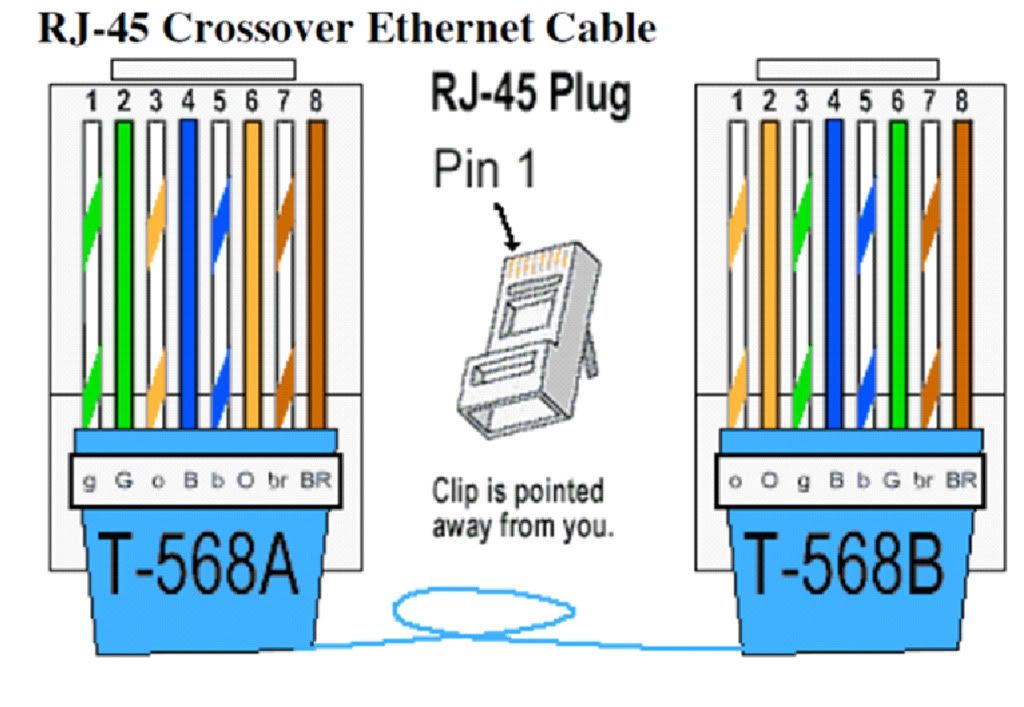
Ethernet Cable ၾကိဳးေတြကို ၾကည့္လိုက္ရင္ Cat 5, Cat 5e အမ်ိဳးအစားကိုေတြ ့ရမွာျဖစ္ပါတယ္ ကြန္ပ်ဴတာ lan port မွာ လာေရာက္တပ္ဆင္ေပးရပါတယ္ RJ 45 connector လို ့ေခၚပါတယ္.. အခုကြန္ပ်ဴတာ တစ္လံုးနဲ ့တစ္လံုး ခ်ိတ္ဆက္ဖို ့အတြက္ ဒီconnector ကိုအသံုးျပဳရပါတယ္ ဒါေၾကာင့္ ဒီ cable မွာပါတဲ ့ wire ၾကိဳးေရာင္စံု color ေတြကို ဘယ္လို အေနထားနဲ ့ခ်ိတ္ဆက္မလဲ ဆိုတာ သိထားဖို ့ လိုပါတယ္ ဒီ cable ကို unshited twisted pair(UTP) cable လို ့ေခၚပါတယ္ သူ ့ မွာ wire cable 8 ခုပါပါတယ္ ..half color နဲ ့ full color ေတြပါ၀င္ပါတယ္..ဒီလို Ethernet cable ကို T568-A နဲ ့ T568-B ဆိုျပီး သတ္မွတ္ပါတယ္..ဒါဆိုရင္ T568-A ဆိုတာ.. T568-A ဆိုတာ ၾကိဳး အေနထား ထားသိုမွုနည္းစနစ္ျဖစ္ပါတယ္.. T568-B လည္းတူတူပါပဲ..ဒါေပမဲ ့ T568-A နဲ ့ T568-B တို ့ဟာ lan connector အတြင္းေနရာထားသိုမွုကြာသြားပါတယ္..
Lan ေခါင္း နွစ္ဖက္စလံုး (ေအာက္ကပံုမွာျပထားသည့္အတိုင္း)T-568A က ဘယ္မွာသံုးသလဲဆိုရင္ ကြန္ပ်ဴတာ တစ္လံုးနဲ ့တစ္လံုး ၾကားခံ switch တို ့ hub တို ့နဲ ့ခ်ိတ္ဆက္တဲ့အခါ အသံုးျပဳပါတယ္.. (straight ခ်ိတ္ဆက္နည္းလို
့လည္းေခၚပါတယ္)


Lan ေခါင္း နွစ္ဖက္စလံုး (ေအာက္ကပံုမွာျပထားသည့္အတိုင္း)T-568B က ဘယ္မွာသံုးသလဲဆိုရင္ ကြန္ပ်ဴတာ တစ္လံုးနဲ ့တစ္လံုး ၾကားခံ switch တို ့ hub တို ့နဲ ့ခ်ိတ္ဆက္တဲ့အခါ အသံုးျပဳပါတယ္.. (straight ခ်ိတ္ဆက္နည္းလို ့လည္းေခၚပါတယ္)T-568A ကိုပဲသံုးသံုး T-568B ကိုပဲသံုးသံုး ရပါတယ္..နွစ္ဖက္စလံုးတူဖို ့လိုပါတယ္..  

Cable တစ္ခုတည္းမွာ Lan ေခါင္း တစ္ဖက္က T-568A ျဖစ္ျပီးေနာက္တစ္ဖက္က T-568B ဆိုရင္ ကြန္ပ်ဴတာ တစ္လံုးနဲ ့တစ္လံုး ၾကားထဲမွာ switch တို ့ hub တို ့မခံပဲနဲ ့ဒဲ ့ခ်ိတ္တဲ့အခါက်ရင္ အသံုးျပဳပါတယ္(cross ခ်ိတ္ဆက္နည္းလို ့လည္းေခၚပါတယ္)..ေအာက္ကပံုအတိုင္းျဖစ္ပါတယ္


2009 ခုနွစ္ေလာက္ကစျပီး network card မ်ားဟာ အခုလို cable ေတြကို T-568A ပဲျဖစ္ျဖစ္ T-568B ပဲျဖစ္ျဖစ္ ဘယ္အမ်ိဳးစားပဲျဖစ္ျဖစ္ခ်ိတ္ဆက္လာနိုင္ပါတယ္ ဥပမာ ကြန္ပ်ဴတာ နွစ္လံုး ဒဲ ့ခ်ိတ္ရင္ အရင္ကဆို cross cable ျဖစ္ေအာင္ လုပ္ျပီးမွ ခ်ိတ္လို ့ရပါတယ္ အခုေတာ့အဲလိုမဟုတ္ေတာ့ပါဘူး cross ပဲျဖစ္ျဖစ္ straight ပဲျဖစ္ျဖစ္ သူ ့ဘာသူ အလုိအေလ်ာက္ခြဲေပးသြားပါတယ္..
ေဆြးေနြးခ်က္အနွစ္ခ်ဴပ္..
၁။ Network ဆိုတာ ကြန္ပ်ဴတာ နွစ္လံုး (သို ့)နွစ္လံုးနဲ ့အထက္ခ်ိတ္ဆက္ထားျခင္းကို network လို ့ ေခၚပါတယ္..
၂။ အဓိကအာျဖင့္ network ကို LAN ,MAN ,WAN ဆိုျပီးသတ္မွတ္ပါတယ္..LAN ဆိုတာ Local Area Network ျဖစ္ျပီး အေဆာက္အဦး တစ္ခုစာ အတြင္းမွာ ခ်ိတ္ဆက္ ထားတဲ့ ကြန္ပ်ဴတာေတြ ျဖစ္ပါတယ္..LAN ဟာ Area အားျဖင့္ အေသးငယ္ဆံုးေသာ network ျဖစ္ပါတယ္..MAN ဆိုတာ Metropolitan Area Network ျဖစ္ျပီး ျမိဳ ့တစ္ျမိဳ ့စာ Area အတြင္း ခ်ိတ္ဆက္နုိင္ ပါတယ္…WAN ဆိုတာ Wide Area Network ျဖစ္ျပီး ကမၻာ အရပ္ရပ္ကို ဆက္ သြယ္နိုင္ေသာ network ၾကီးျဖစ္ပါတယ္..WAN ဟာ Area အက်ယ္ဆံုး network အမ်ိဳးစားျဖစ္ပါတယ္.. network ေပါင္းေျမာက္မ်ားစြာကိုခ်ိတ္ဆက္ထားသည့္ အတြက္ေၾကာင့္ network of the network လို ့လည္းေခၚဆုိၾကပါတယ္..
၃။Protocol ဆိုတာကေတာ ့ မတူညီတဲ ့ File type ေတြ မတူညိီတဲ ့OS platform ေတြ , Communication Device ေတြကို ခ်ိတ္ဆက္ရာမွာ အသံုးၿပဳတဲ ့ Language ၁ မ်ိဳးပါပဲ…
၄။ IP မွာ Class 5 ခုရွိပါတယ္ class A,B,C,D,E ဆိုျပီးေတာ့ရိွပါတယ္ class D နဲ ့E ကိုဒီေနရာမွာ ေတာ့မေျပာေတာ့ပါဘူး တစ္ကမၻာလံုးမွာ အမ်ားဆံုးသံုးေနၾကတဲ ့ class A,B,C ကို ပဲအဓိက ေျပာပါ့မယ္..
1 မွ 126 အထိက A class ပါ( First Octet ကိုေျပာတာပါ)
128 မွ 191 အထိက B class ပါ ( First Octet ကိုေျပာတာပါ)
192 မွ 233 အထိက C class ပါ ( First Octet ကိုေျပာတာပါ)